How to Convert Text to PDF Online for Free (Ultimate Guide)
Converting your text into a PDF is quite simple with a Text to PDF Converter tool. Whether you’ve copied plain text to your clipboard, saved a TXT file of assignments, business reports, or a collection of messages, you can easily turn it into a PDF.
This guide will explain a step-by-step process to convert text to PDF online for free and without installing any software. You’ll also learn some useful tips to get better results from text-to-PDF conversion.
A Step-by-Step Guide to Convert Text to PDF Online
Step 1: Open an Online Text to PDF Converter
Open the ImageToText.io Text to PDF Converter in any browser on your mobile phone or computer. It gives you a rich text editor where you can enter your text, format it, and make it ready before converting it into a PDF.
This text to PDF maker is quite convenient, completely free, requires no software installation, and provides a wide range of editing and formatting options.
All in all, this is a reliable tool for creating PDFs of anything from short notes to long detailed documents with proper formatting.
Step 2: Input Your Text Into the Tool
Start by adding the text that you want to convert into a PDF. You can:
Type text directly into the editor box.
Copy text from another source and paste it into the converter.
Upload one or multiple .txt files from your device’s storage.
Pictorial Demo:
We added a piece of text into the Text to PDF Converter to show how it works;
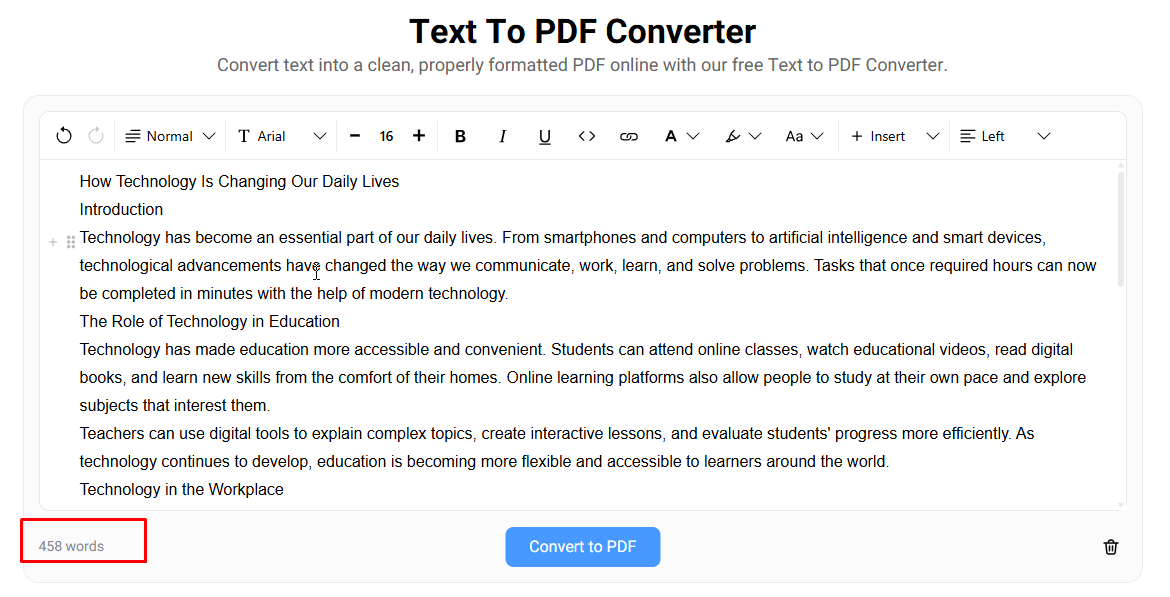
Before moving to the next step, you should ensure that all of the text is added into the tool by checking the word count at the bottom of the editor.
Step 3: Adjust Formatting (Optional)
This is the step to make your text ready for conversion into PDF. Use Text to PDF’s toolbar to organize your content and customize its appearance using different formatting options.
Here’s what you can do with the tool’s rich text editor:
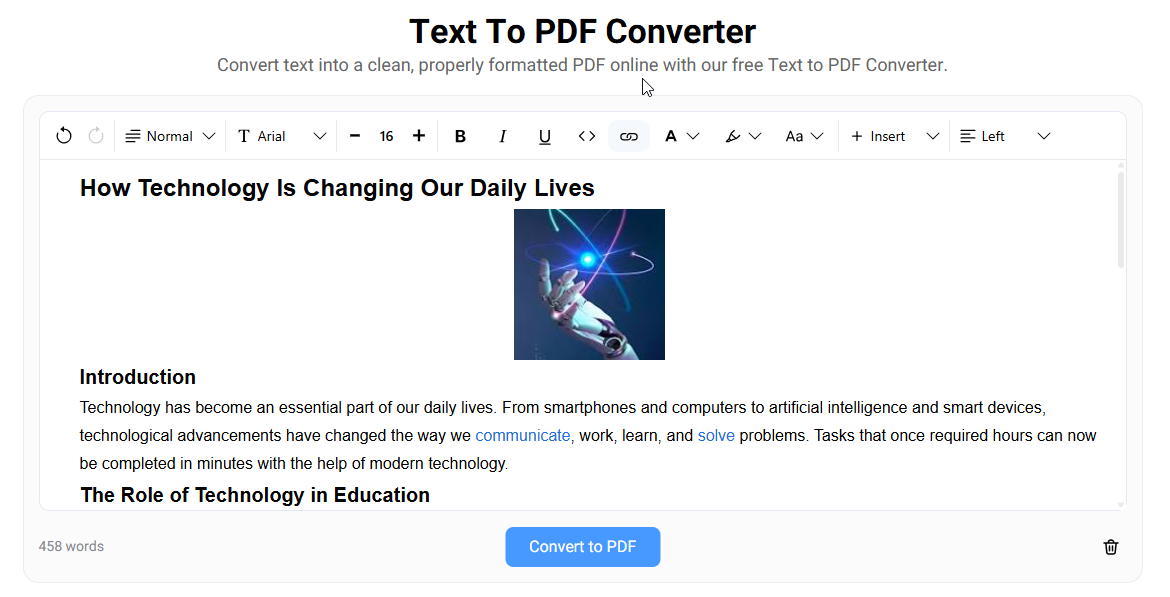
You can add proper headings (H1, H2, and H3), numbered lists, bullet points, checklists, and code blocks.
The converter lets you choose different types of fonts and increase or decrease the text size.
To highlight key phrases or distinguish them from regular text, you can bold, italicize, and underline them.
With text alignment options, you can align text to the left, to the center, or to the right to suit your document.
You can insert hyperlinks, images, tables, and equations as well.
And more…
When you're done formatting and editing, take a moment to review your text and make necessary adjustments before converting it.
To demonstrate this step practically, we formatted a piece of text that is shown in the image.
Step 4: Convert and Download
Once you’ve prepared the text for conversion, hit the “Convert to PDF” button given right below the editor box. The Text to PDF Converter will instantly process your text, generate a PDF, and download it to your device in real time.
Step 5: Check Your PDF
The final step is to review the downloaded PDF document before sharing it anywhere. You should check that all the headings, paragraphs, numbered lists, first and last lines, images, tables, and elements appear as expected. If you find something wrong, you should go back to the editor, adjust the content in the editor, and convert it to PDF again.
Tips for a Better Text to PDF Result
Follow these tips to get better results from the online text to PDF conversion:
Make sure that the whole document has a readable font and text size.
Properly add headings to text in the sequence of H1>H2>H3.
If your content is one long block of text, break it into paragraphs to make it easier to read.
Review all the inserted elements like images, tables, links, special characters, notes, etc.
For creating more professional PDFs from text, we emphasize important points using bold, italic, or underline options.
Always review the text before converting it into a PDF.
Conclusion
Converting text to PDF online is quite simple; you just need to take a few steps: open the online converter, enter the text, format it if needed, press the “Convert to PDF, and review the result. A resulting PDF document will retain your formatting and layout exactly the same on every device as it is on yours.
In this guide, we walked through a step-by-step complete process using the free ImageToText.io Text to PDF Converter. Ready to try it? Open the tool and turn your text into a PDF in seconds.
FAQs
1. Why do people convert text to PDF?
Text is converted into PDF because:
It looks the same on every device.
It looks more professional than a TXT file.
It prints with the margins and page breaks you set.
It is easy to share, store, and send by email.
2. How can I convert text embedded on images into PDF?
In this scenario, first extract the text from images using Image to Text Converter, copy the resulting text, paste it into the Text to PDF tool, and do the further process as explained above.
3. Can I convert a TXT file to PDF without Microsoft Word?
Yes. The Online TXT to PDF converter lets you do so in quite simple steps. Just upload your .txt file into the tool, and get it converted into PDF in a single click. You don’t need to install MS Word for this conversion.
4. How to convert text to PDF on mobile?
It’s simple. Just open the online text to PDF maker in any browser on your mobile phone and convert it into a PDF.
5. Will hyperlinks remain clickable in the PDF after conversion?
Yes. After conversion, the links in the resulting PDF stay clickable. However, it is recommended to ensure it by clicking every link manually before you share the PDF anywhere.


